How a Browser Works
A Beginner-Friendly Guide to Browser Internals
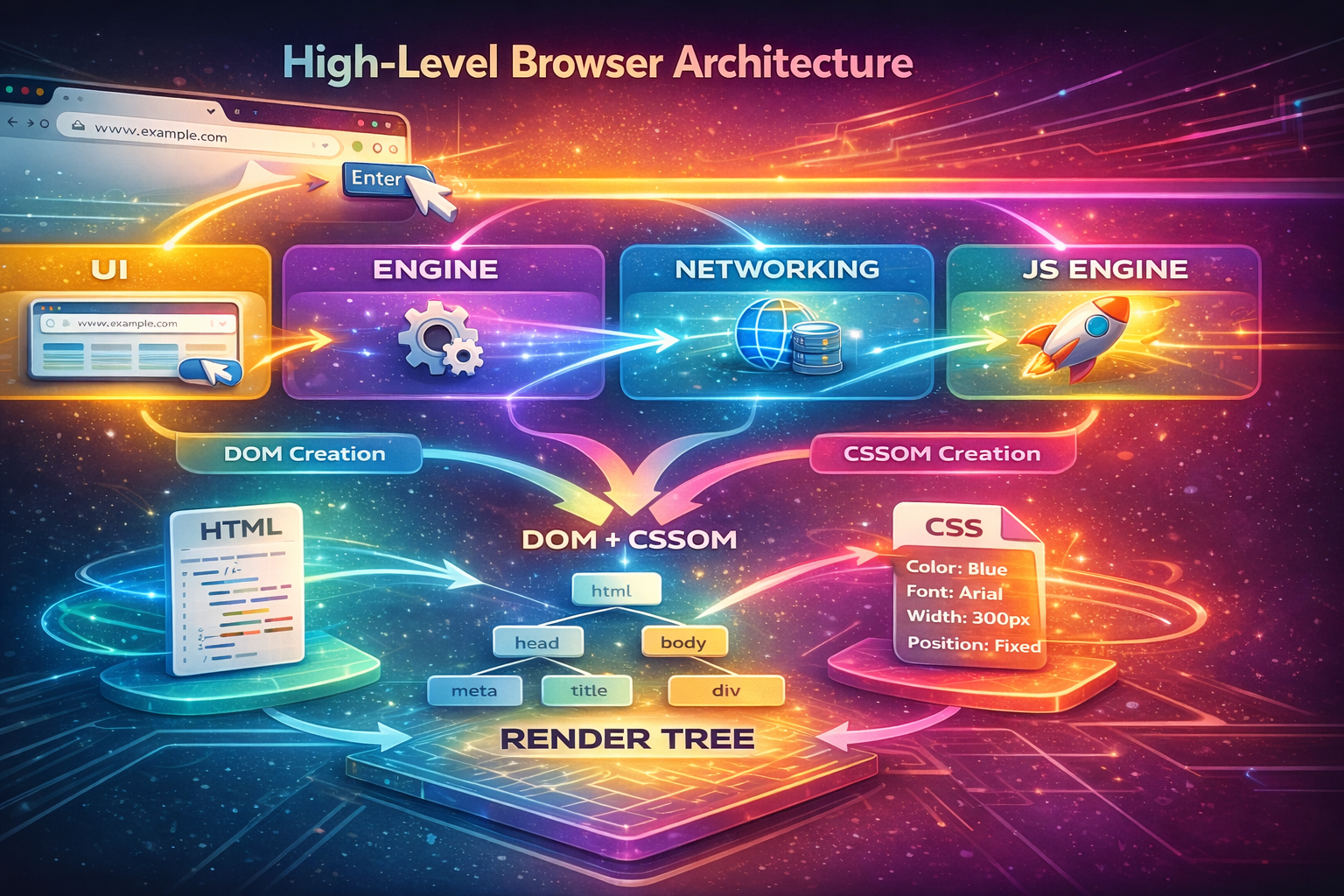
Let’s start with a simple question:
What actually happens after you type a URL and press Enter?
Most people think: “The website opens.”
But under the hood, your browser is doing a lot more than that—step by step, like a well-organized team.
This guide explains that journey without specs, jargon, or memorization pressure. Just concepts, flow, and visuals in your head.
1. What a Browser Really Is
A browser is not the internet.
It’s more like a translator + builder + painter.
At a high level, a browser:
Fetches website files from the internet
Understands what those files mean
Converts them into something you can see and interact with
Think of a browser as a factory:
Raw materials come in (HTML, CSS, JavaScript)
Different departments process them
The final product is the webpage you see
2. Main Parts of a Browser
At a very high level, a browser has these major components working together:
User Interface
Browser Engine
Rendering Engine
Networking
JavaScript Engine
Data Storage
You don’t need to memorize these. Just know:
Each part has one job, and they work in a pipeline.
3. User Interface: What You Actually See
This is the part you interact with every day:
Address bar
Tabs
Back/Forward buttons
Refresh button
Bookmarks
Important note:
The UI is NOT the webpage.
The webpage lives inside the browser window, handled by other components.
4. Browser Engine vs Rendering Engine
This confuses beginners a lot, so let’s keep it simple.
Browser Engine
Acts as a coordinator
Tells the rendering engine what to load and when
Rendering Engine
Does the real work of turning code into pixels
Converts HTML + CSS into a visual page
Analogy:
Browser Engine → Project manager
Rendering Engine → Construction workers
(Examples you might hear: Chromium, Gecko—but names aren’t important right now.)
5. Networking: Fetching the Website
When you press Enter:
The browser figures out where the website lives (DNS)
It sends a request over the internet
The server responds with files like:
HTML
CSS
JavaScript
Images
Think of networking as:
Ordering ingredients from a warehouse
6. HTML Parsing and DOM Creation
Now the browser receives HTML.
HTML is just text, so the browser must understand its structure.
Parsing (Simple Idea)
Parsing means:
Breaking something into pieces to understand its meaning.
Example:
2 + 3 × 4
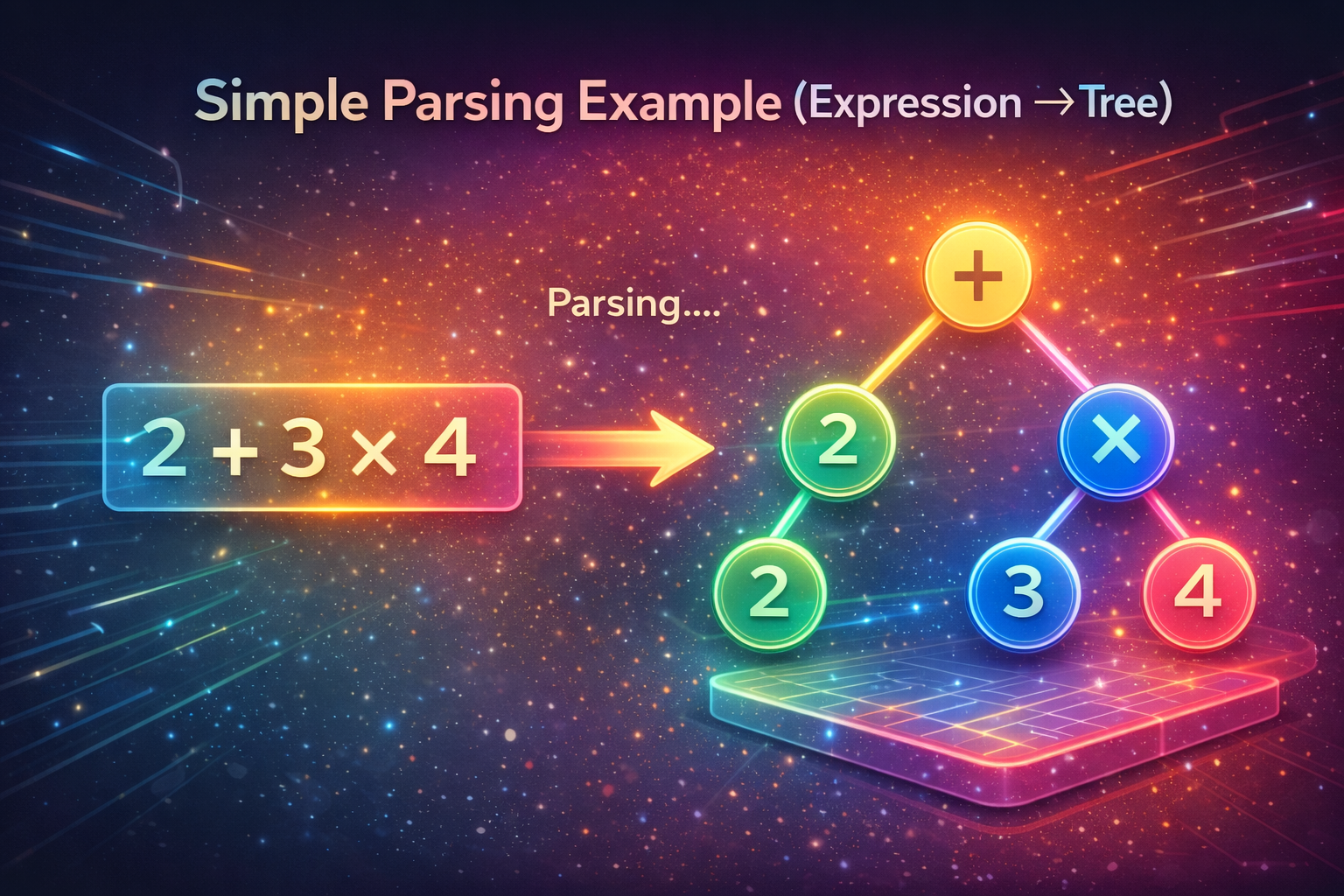
Your brain doesn’t see symbols—it understands numbers, order, structure.
Browsers do the same with HTML.
DOM (Document Object Model)
The browser turns HTML into a tree structure
Each tag becomes a node in the tree
Analogy:
DOM is a family tree of the webpage
<html> is the root
<body> has children
<div>, <p>, <h1> are branches
7. CSS Parsing and CSSOM Creation
CSS is handled separately.
The browser:
Reads CSS rules
Parses them
Builds the CSSOM (CSS Object Model)
CSSOM answers questions like:
What color is this text?
How wide is this box?
Where should this element be positioned?
Analogy:
🎨 CSSOM is the style guide
8. DOM + CSSOM = The Render Tree
Now comes an important moment.
The browser:
Takes the DOM (structure)
Takes the CSSOM (styles)
Combines them into the Render Tree
Only visible elements make it here.
Analogy:
Blueprint (DOM) + Paint plan (CSSOM) = Final construction plan
9. Layout ,Painting and Display
Once the browser knows what to show (DOM + CSSOM), it figures out how to show it on the screen.
First, the browser calculates the layout:
Where each element should be placed
How big each element is
How elements affect one another
This process is often called Layout or Reflow.
For example:
If one box becomes taller, the elements below it move down
If you resize the browser window, the layout is recalculated
After the layout is decided, the browser moves to painting:
It draws pixels for text, colors, borders, images, and shadows
The final result is displayed on your screen
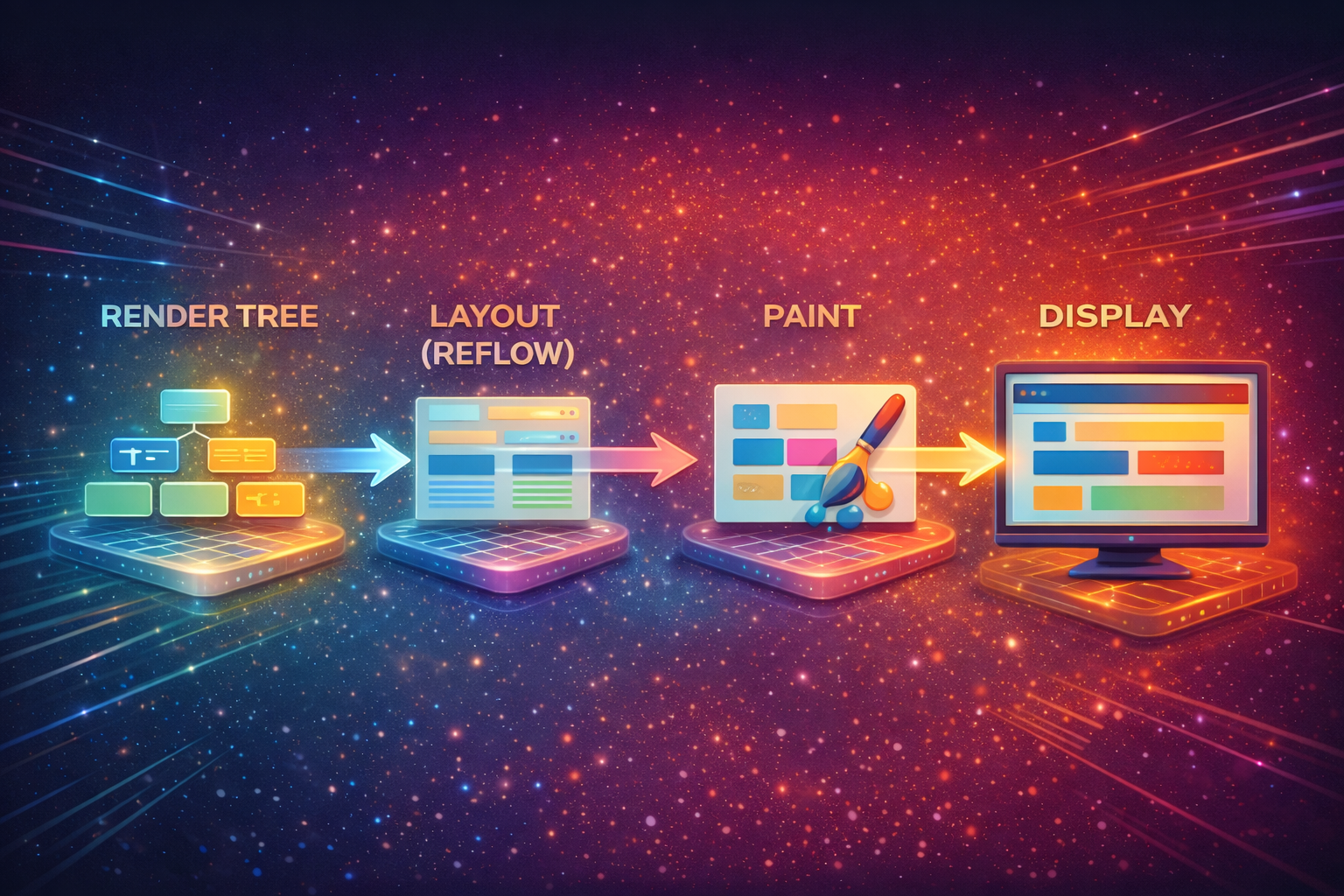
This entire process happens repeatedly during normal use:
When you scroll
When you hover over elements
During animations
When JavaScript changes the DOM
In short, this is the stage where the webpage actually appears, updates, and feels alive.
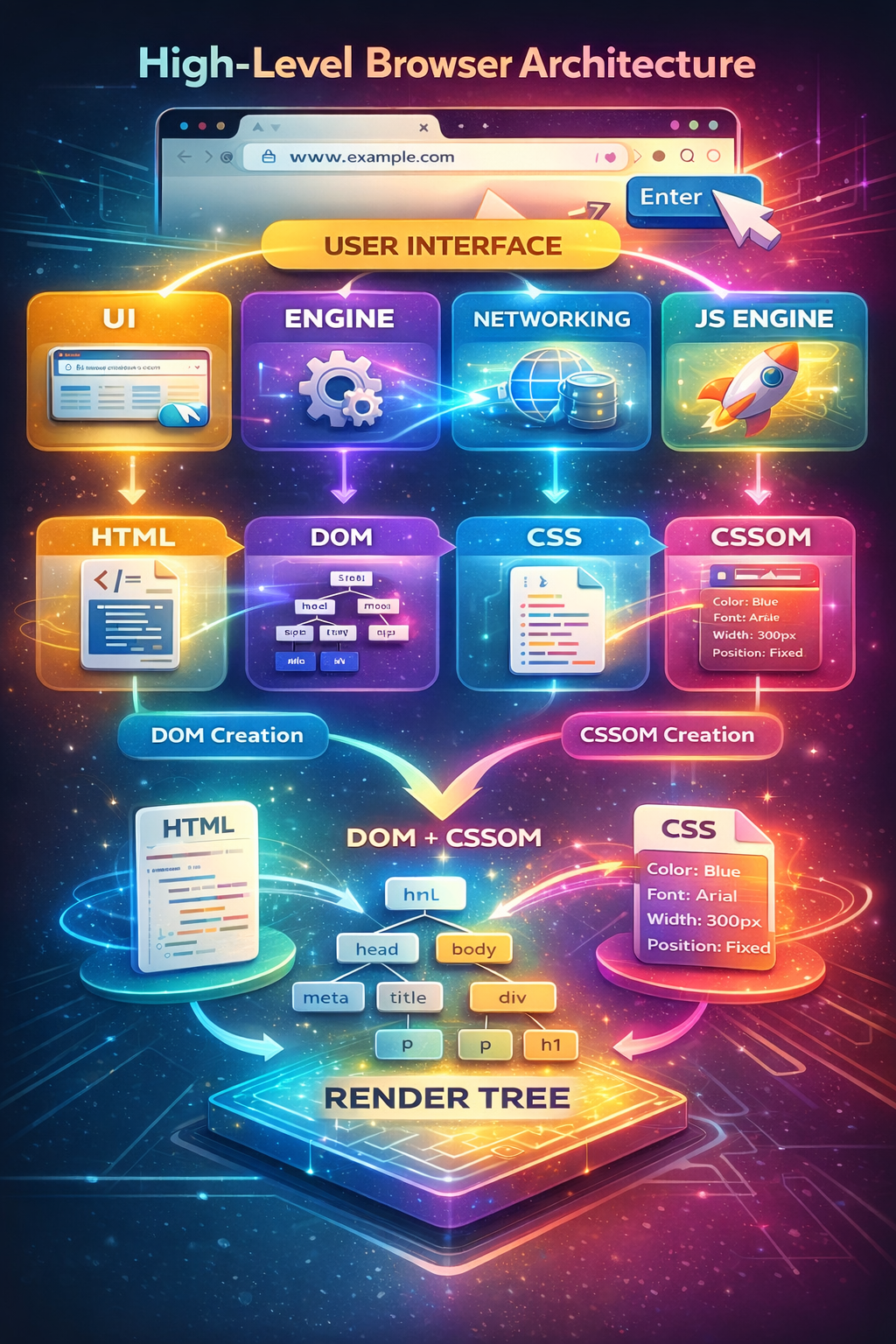
10. The Big Flow
Here’s the story you should remember—not the terms:
You type a URL
Browser fetches files
HTML → structure (DOM)
CSS → styles (CSSOM)
DOM + CSSOM → render plan
Layout decides positions
Paint shows pixels
Page appears 🎉
Final Reassurance
You do not need to remember:
Every engine name
Every internal step
Every technical term
What matters is:
Understanding the flow
Knowing browsers are systems, not magic
Realizing performance, layout shifts, and bugs all connect back to these steps
If you understand the story, the details will make sense later—naturally.


